
One Consent Choice and Three Different Tag States
A visible consent banner proves only that a banner rendered. It does not prove that the page set the intended default, that the visitor’s choice reached the tag manager, or that network requests followed the resulting state.
A reliable acceptance test therefore follows one choice through four layers: the banner, the consent state, the tag decision and the browser request. The method below uses a controlled test site and synthetic interactions, so a team can diagnose the implementation without exposing customer data or claiming legal compliance.
Define the evidence chain before testing
Start with the implementation decision that already exists. Confirm whether the site uses basic or advanced consent mode, which consent categories it exposes, which regions receive the banner and which tags should react to each state. Google documents different tag behaviour for basic and advanced consent mode, so an observation that is correct in one design can be wrong in the other.
The test is not a search for any request with “analytics” in its name. It is a comparison between an expected state and four recorded observations. Write the expectation first, then capture what the page actually did.
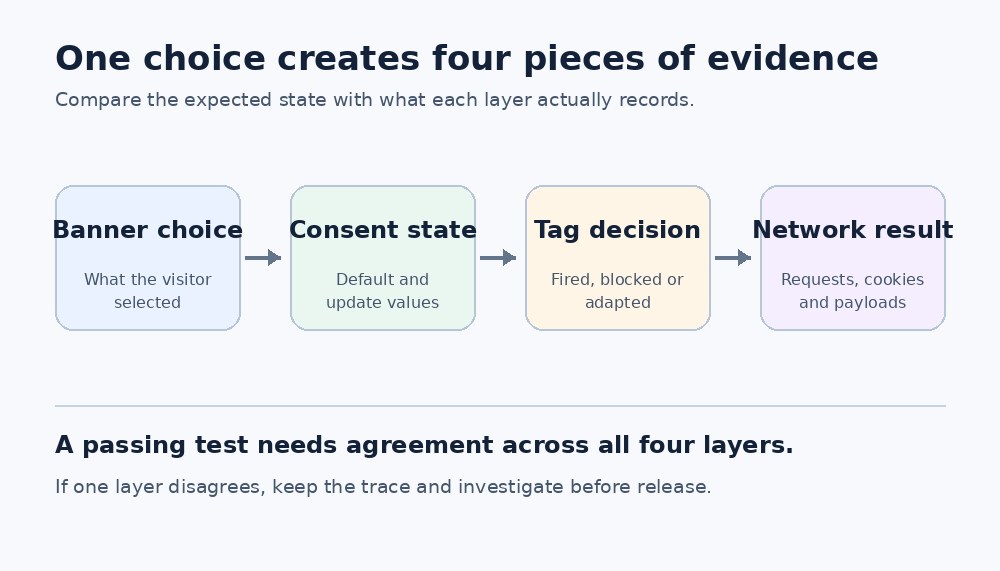 Figure 1 The acceptance trace connects the visitor choice to the final browser activity.
Use four questions for every scenario
- What did the visitor select in the banner or preference centre?
- Which default and updated consent values did the page record?
- Which tags fired, remained blocked or changed their behaviour?
- Which requests and storage changes appeared in the browser?
Build a small scenario matrix
A long checklist is less useful than a small set of states that can be repeated. Begin with a clean browser profile or an isolated test profile. Record the URL, build identifier, container version, region being simulated and test time so another person can reproduce the run.
The matrix below is illustrative. Replace the expected values with the organisation’s approved implementation rules. Do not infer legal requirements from the example.
| Scenario | Banner | Consent state | Tag decision | Network evidence |
| First visit | No choice yet | Approved defaults | Only permitted pre-choice behaviour | Expected pre-choice requests only |
| Reject all | Rejected | Relevant values denied | Blocked or adapted as designed | No unexpected identifiers or requests |
| Partial choice | Analytics only | Mixed values | Each tag follows its own checks | Only requests allowed by that state |
| Accept all | Accepted | Relevant values granted | Expected tags run | Expected requests and storage appear |
| Revoke later | Changed to rejected | Update records denial | Later events obey the new state | No new disallowed activity after the change |
| Return visit | Saved choice shown | State restored correctly | Same rule after reload | No first-load race or stale choice |
Run the trace in sequence
Capture the first page state
Open Tag Assistant before interacting with the banner. In the earliest Consent event, record the on-page defaults for the consent types used by the site. Google’s troubleshooting guide recommends checking the earliest event because defaults need to exist before later tags depend on them.
In Google Tag Manager, a consent-management template should normally use the Consent Initialization trigger. That trigger runs before other initialization triggers. If the default appears after a measurement or advertising tag has already acted, the banner may look correct while the sequence is already wrong.
Record the visitor action and the update
Choose one scenario and note the exact action: reject all, accept all or select a defined subset. Then inspect the most recent Consent event and compare every updated value with the matrix. Google advises that updates be tracked on the page where the interaction occurs and before a page transition, because the tag reacts to the update when it processes later events.
Do not treat a data-layer message as final evidence. It shows that one layer emitted an event. The tag may still have different built-in checks, additional consent checks or custom logic.
Inspect tag decisions
For each relevant tag, record whether Tag Assistant shows it as fired, blocked or affected by consent. Review the container’s Consent Overview as a configuration inventory, but use the actual preview trace to verify the tested page and event.
Pay special attention to custom HTML and legacy tags. A banner can update Google consent values correctly while a third-party script continues to load because it does not read those values or because its trigger ignores them. Document the observed behaviour and compare it with the approved design rather than assuming that every tag uses the same consent mechanism.
Inspect browser requests and storage
Keep the browser Network panel open with Preserve log enabled so redirects and page transitions do not erase evidence. Clear the log before each scenario, and use the same cache setting in every run. Chrome DevTools documents Preserve log and Disable cache as separate controls, so record both in the test notes.
Compare request timing, destination, query parameters, payload and response. Also check cookies or other storage only where the test plan calls for it. A request can exist without writing an identifier, and an identifier can remain from an earlier session, so request presence and storage state should be recorded separately.
Repeat after reload and route changes
Reload the page, navigate through one client-side route if the site uses a single-page application, and revisit the page in a new tab. The saved preference must be restored before later events use it. A result that passes only on the initial page but fails after a route change is still a failed acceptance test.
Diagnose disagreements between layers
The banner and the consent state disagree
The interface may display “rejected” while the earliest consent event shows a granted or unset default. Check when the CMP loads, whether region-specific defaults overlap and whether asynchronous loading lets another tag run first. For direct gtag.js implementations, Google states that the default command should precede commands that send measurement data.
The consent state and the tag decision disagree
If the state updates but a tag still fires unexpectedly, inspect its built-in and additional consent checks. Check whether a custom trigger bypasses the intended gate. For Tag Manager templates, use the consent APIs documented for templates rather than a custom HTML workaround that runs later than expected.
The tag decision and the network evidence disagree
A tag can appear blocked while another script sends a similar request, or a request can be replayed from a stale page state. Identify the initiator in DevTools, compare the timestamp with the consent events and repeat with a fresh profile. Do not assign the request to a tag based only on the endpoint name.
Keep a compact evidence record
A useful test record lets an engineer reproduce the run without reinterpreting screenshots. Save the matrix row, the expected state, the actual values and enough timestamps to establish order. Redact identifiers and do not copy production customer data into the evidence pack.
| Evidence | Minimum record | Reason |
| Test context | URL, build, container version, region, time | Makes the run reproducible |
| Banner action | Screenshot or written action and visible state | Shows what the visitor selected |
| Consent trace | Earliest default and latest update values | Establishes state and order |
| Tag trace | Tag name, event and fired or blocked result | Connects state to execution |
| Network trace | Filtered HAR or request details with sensitive data removed | Shows the browser outcome |
| Result | Pass, fail or needs investigation with one reason | Prevents ambiguous sign-off |
Set release criteria that can be retested
Approve the implementation only when every required scenario has a documented expectation and the four evidence layers agree. A missing screenshot is not automatically a product defect, but a missing default, unexplained tag execution or unexpected request must stay open until the team can explain and reproduce it.
Retest the matrix after a CMP change, container publication, analytics migration, consent-category rename or routing change. These releases can alter timing or tag ownership even when the banner design does not change.
The practical benefit of this framework is traceability. When a discrepancy appears, the team knows whether to investigate the interface, the stored state, the tag configuration or the network path instead of clearing cookies and hoping the problem disappears.
References
